GTA 6 Settings Guide: Every Menu and the Best Settings
What are the best settings in GTA 6?
The best GTA 6 settings for most players are Minimap Always On, subtitles at Medium or larger, and Motion Blur turned down from 3. Streamers should also switch on Mute Licensed Music in the Audio tab. The settings menu has eight tabs, from Control Scheme to Account.
Watch GamerFleet's launch stream and you will catch something smart before the first mission: the Audio tab opens and Mute Licensed Music gets switched on. One toggle, and a whole night of streaming is safer from copyright claims. That is why GTA 6 settings are worth five minutes. Here is every menu we saw on launch day.
What happens the first time you launch GTA 6?
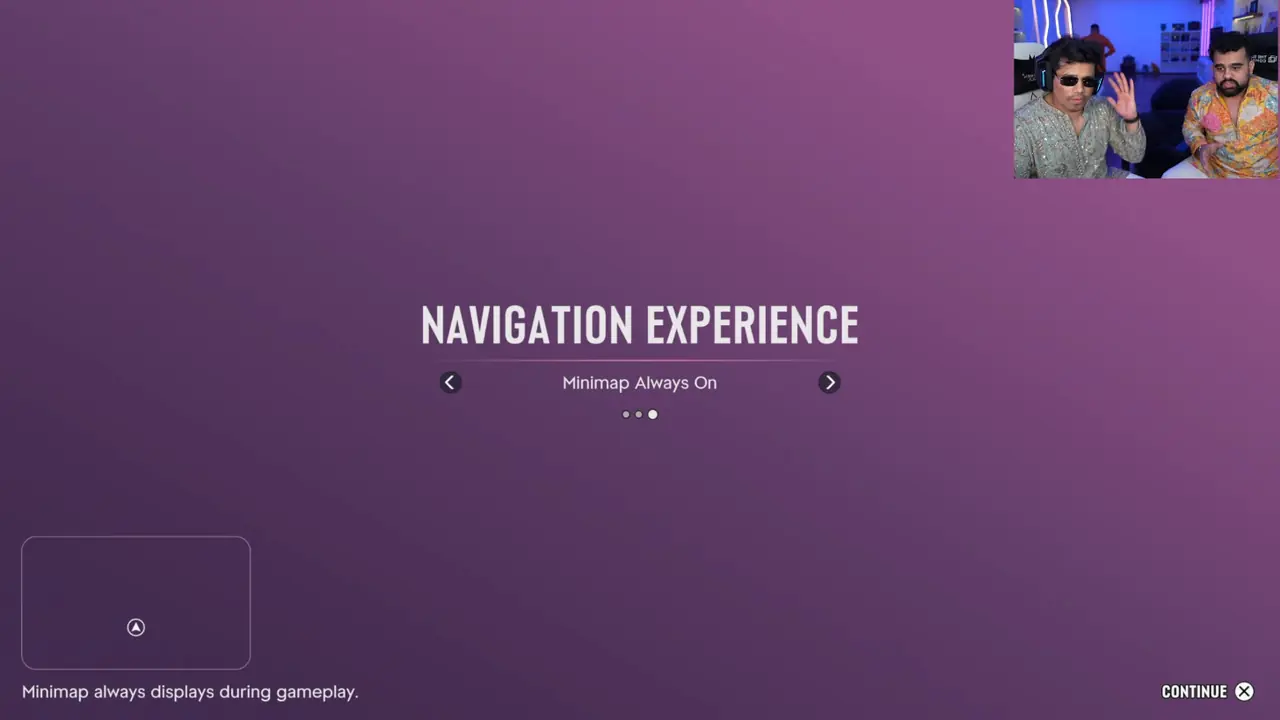
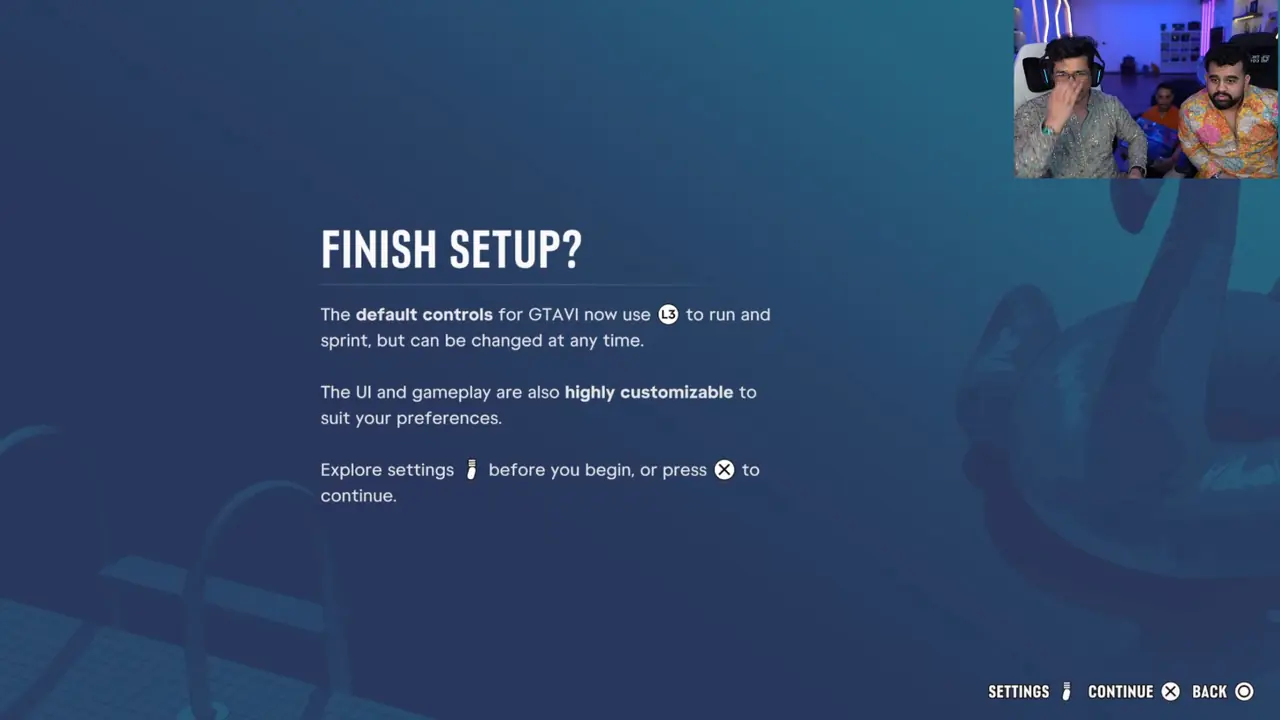
GTA 6 walks you through a short setup before the story starts. Based on GamerFleet and Mythpat's streams:
- Navigation Experience. Pick one of three minimap styles. "Minimap Always On" keeps it on screen at all times.
- Subtitles. Pick a subtitle size from four options. Medium is the third step. More options live in Settings.
- Legal Notices. Copyright and a Photosensitivity Health Warning.
- Finish Setup. A reminder that L3 is now run and sprint, and that the UI is "highly customizable". Open settings from here, or press X to start.
What are the GTA 6 settings tabs?
The settings menu has eight tabs. Move between them with L1 and R1.
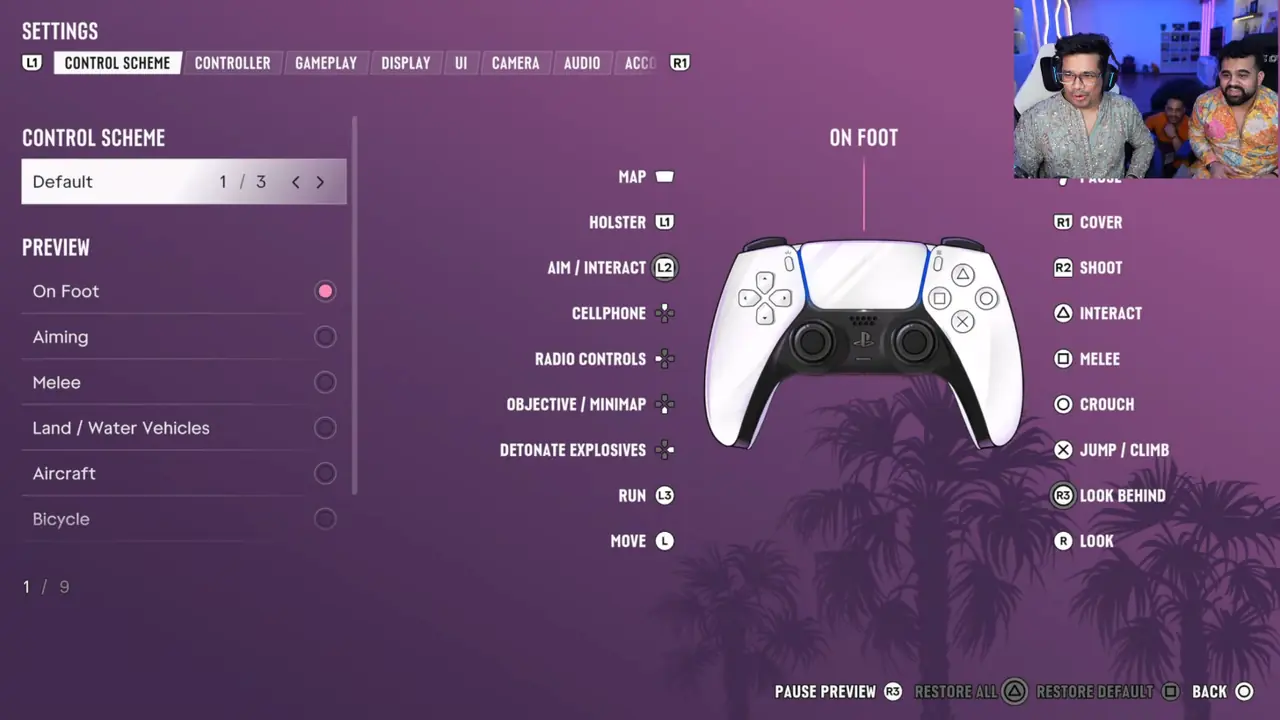
- Control Scheme: three button layouts, with a live preview.
- Controller
- Gameplay
- Display: brightness, safe zone and visual effects.
- UI: Vice Manual counted around 70 UI options, from minimap style to each HUD element.
- Camera
- Audio: speakers, cop scanner, GPS voice, music and volume.
- Account
We saw Control Scheme, Display and Audio in full on launch streams, so those are covered below. For the rest, TechRadar's review mentions aim assist, camera shake and bob, and UI and subtitle scaling. We will add the full lists once we capture them.
What are the default GTA 6 controls on PS5?
The default PS5 layout for on foot, from the Control Scheme tab:
| Button | Action | Button | Action |
|---|---|---|---|
| Touchpad | Map | R1 | Cover |
| L1 | Holster | R2 | Shoot |
| L2 | Aim / Interact | Triangle | Interact |
| D-pad | Phone, radio, objective, detonate | Square | Melee |
| L3 | Run | Circle | Crouch |
| Left stick | Move | X | Jump / Climb |
| Options | Pause | R3 / Right stick | Look behind / Look |
The preview covers nine situations, including Aiming, Melee, Land and Water Vehicles, Aircraft and Bicycle. Here's a tip: check the vehicle previews before your first chase. Driving controls differ from GTA 5 in small ways.
What is in the Display tab?
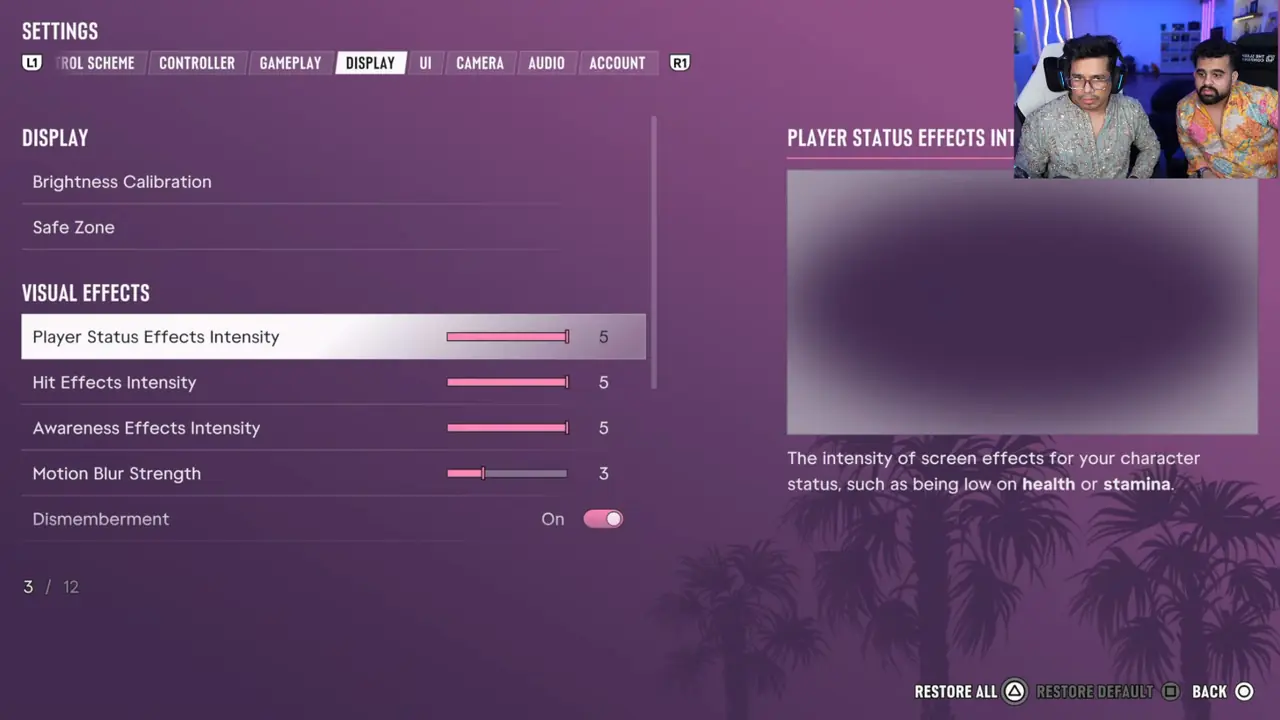
Twelve options, split into Display and Visual Effects:
- Brightness Calibration and Safe Zone (fit the HUD to your TV).
- Player Status Effects Intensity: screen effects when health or stamina is low. Default 5.
- Hit Effects and Awareness Effects Intensity: both default 5.
- Motion Blur Strength: 3 on a fresh setup.
- Dismemberment: on or off.
There is no 30 or 60 FPS switch here. See our FPS guide for why.
What is in the Audio tab?
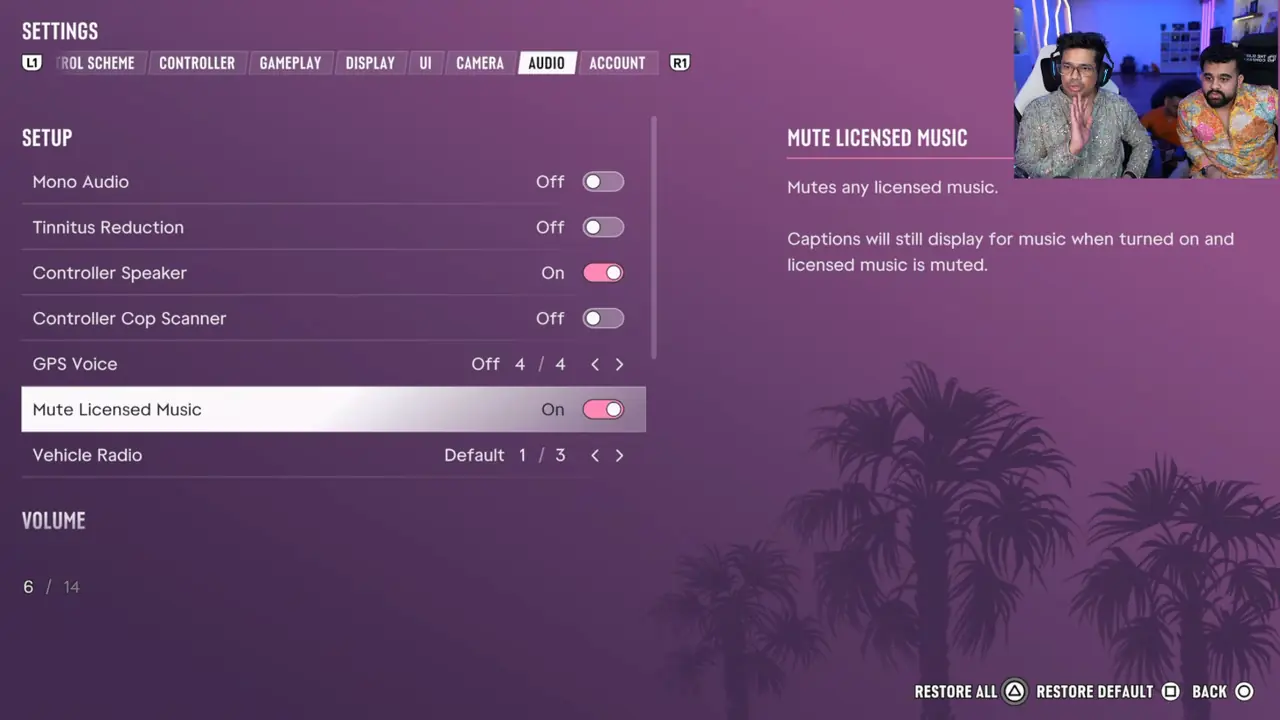
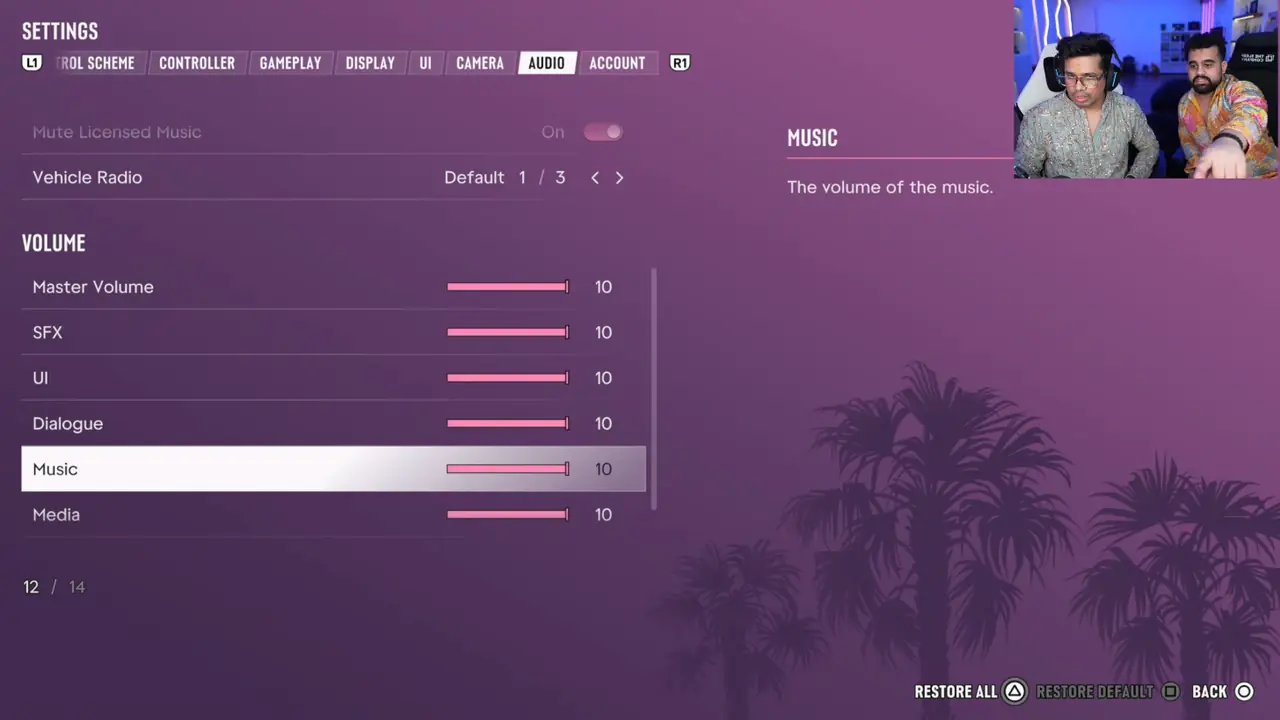
Fourteen options. The setup section is the interesting part:
- Mono Audio and Tinnitus Reduction (both off by default).
- Controller Speaker: plays some sounds from the DualSense. On by default.
- Controller Cop Scanner: police radio chatter through the controller speaker.
- GPS Voice: four options for spoken directions.
- Mute Licensed Music: silences licensed songs. Captions for music still show.
- Vehicle Radio: three behaviours for the car radio.
- Volume sliders: Master, SFX, UI, Dialogue, Music and Media, each out of 10.
What are the best GTA 6 settings for streamers and clippers?
This is where settings really pay off. Our checklist before going live:
- Mute Licensed Music: On. Fewer copyright claims on VODs and clips.
- Controller Speaker: Off. Sounds from the DualSense speaker are not captured by most stream setups, so viewers miss them.
- Subtitles: On. Most short clips are watched muted, so burned-in dialogue helps.
- Motion Blur: lower. Sharper frames make cleaner thumbnails and vertical crops.
- Photo Studio: press Square in the pause menu for thumbnail-ready shots.
How do the pause menu and Progress tab work?
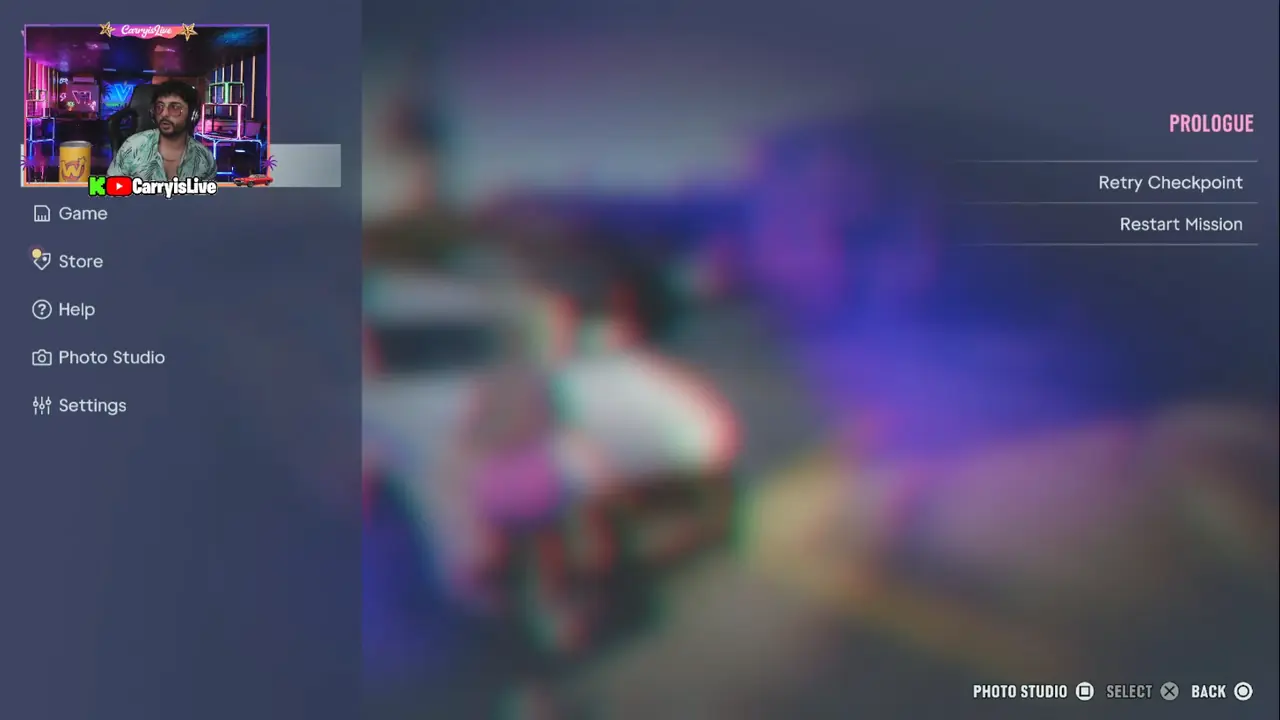
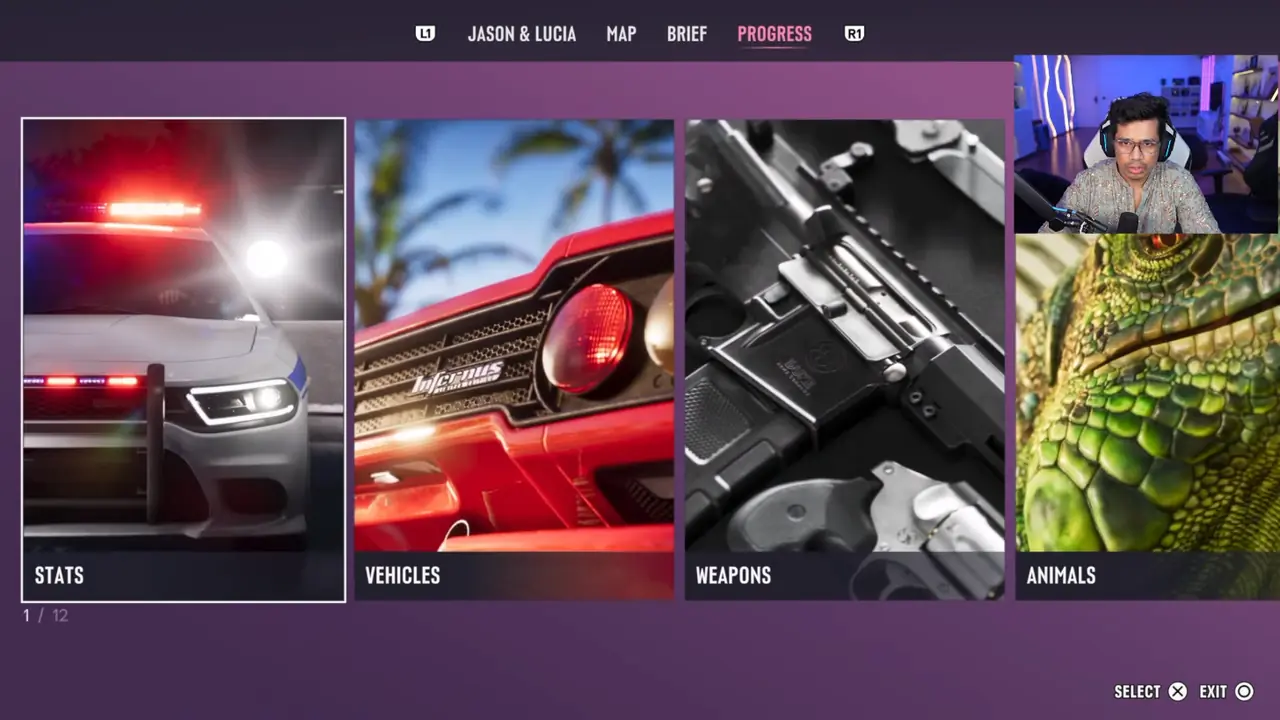
The pause menu lists Game, Store, Help, Photo Studio and Settings. During a mission you also get Retry Checkpoint and Restart Mission. The map screen has four tabs: Jason & Lucia, Map, Brief and Progress.
Progress holds 12 categories, starting with Stats, Vehicles, Weapons and Animals. After the story, this is also where the Cheats section appears.
Our take
Based on what we've seen, GTA 6 has the most flexible settings Rockstar has shipped. The defaults are fine for a first evening. Still, five minutes in the Audio and Display tabs makes the game feel more like yours.
Set the minimap, size your subtitles, mute licensed music if you stream, and go. You've got this.
Frequently asked questions
Can you change the sprint button in GTA 6?
Yes. GTA 6 uses L3 to run and sprint by default, and the Finish Setup screen says this can be changed at any time. The Control Scheme tab offers three schemes with previews for on foot, aiming, driving, aircraft and more. TheGamer's review also mentions a classic GTA control option.
How do you turn off motion blur in GTA 6?
Open Settings, go to the Display tab and scroll to Visual Effects. Motion Blur Strength is a slider that sat at 3 in launch-day streams. Slide it down to the lowest value for a sharper image. The same section adjusts hit effects, awareness effects and player status effects.
Is there a performance mode in GTA 6 settings?
No. GTA 6 targets 30 FPS on PS5, PS5 Pro and Xbox Series X|S, and Rockstar Games told Kotaku a 60 FPS mode is not coming at launch. The Display tab focuses on brightness, safe zone and visual effects rather than a frame rate or graphics mode switch.
How do you avoid copyright claims when streaming GTA 6?
Turn on Mute Licensed Music in the Audio tab before you go live. It silences licensed songs on the radio, while captions for music can still appear. GamerFleet's launch stream had it switched on. It only targets licensed songs, so dialogue and sound effects are untouched.
Does GTA 6 have difficulty settings?
Not a classic difficulty menu, according to Vice Manual's hands-on check. Instead, GTA 6 offers accessibility options such as easier combat, simplified mini games and reduced vehicle damage. TechRadar's review adds options for camera shake, UI scale, high-contrast visuals and tinnitus reduction.